
User guide
SK B2Brouter Connector
Complete user guide
Overview
About SK B2Brouter Connector
SK B2Brouter Connector receives vendor invoices and credit memos from B2Brouter, automatically finds the Business Central items matching the received lines, remembers the choices confirmed for each vendor, and prepares — without ever posting automatically — either the native purchase order or a draft invoice/credit memo ready for review.
Key features
- Inbox for B2Brouter invoices, with paginated import and duplicate prevention based on the source identifier.
- Automatic item search by item number, GTIN, vendor reference and description, with a score and an explanation.
- Confirmed mappings remembered per vendor, and automatic learning on posting.
- Matching of the invoice with an open purchase order (BT-13 reference, BT-132 lines).
- Preparation of the native order for “Receive and Invoice”, or a direct draft invoice/credit memo without an order.
- Rejection of an invoice with a reason, sent to the vendor through B2Brouter, with the option to cancel it.
- “Filed vendor invoices” history, with a two-way link to the Business Central document.
Business benefits
- Removes manual re-entry of vendor invoices received through B2Brouter.
- Reduces matching errors thanks to a score and an explanation shown for every suggestion.
- Keeps a human check at every step: no document is ever posted automatically.
- Maintains full traceability between the B2Brouter invoice and the Business Central document.
Chapter 1
Connector setup
Before first use, open the Connector Setup page (“Tell Me” search → “SKR B2B Setup”, or from the inbox, Setup action).
| Button | Destination or result |
|---|---|
| Set API key | Opens an input box and stores the key encrypted for the current company (IsolatedStorage, never in plain text in a table). |
| Test connection | Checks the settings and the key without importing any invoice. |
| Delete API key | Erases the stored key, after confirmation. |
| Remembered mappings | Opens the assignment rules learned per vendor. |
Chapter 2
The “Vendor invoices to process” inbox
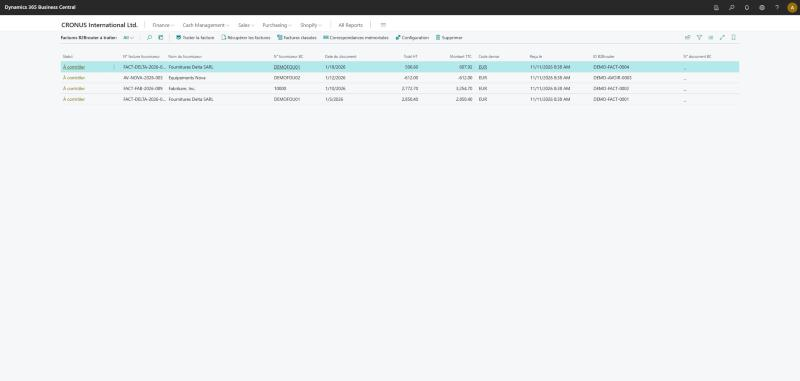
This is the daily entry point: it lists the invoices received from B2Brouter that are neither filed nor rejected.
| Button | Destination or result |
|---|---|
| Process invoice | Opens the review card of the selected imported invoice. |
| Retrieve invoices | Queries B2Brouter, adds the new invoices and skips those already known by their identifier in the source system. |
| Delete | Deletes the selected invoices. They will come back at the next “Retrieve invoices”. Refused if a purchase document has already been prepared or posted. |
| Filed invoices | Opens the history: posted invoices and rejected invoices. |
| Remembered mappings | Opens the vendor → item or G/L account rules learned by the extension. |
| Setup | Opens the API settings, the key and the suggestion threshold. |
The BC document no. column shows the draft invoice or credit memo, or the prepared order, created for the invoice: clicking it opens the document. The Purchase order column is hidden by default (add it with “Personalize” if needed). The Status column follows the processing and cannot be edited by hand.
Chapter 3
The “Imported vendor document” card
The card reads from top to bottom.
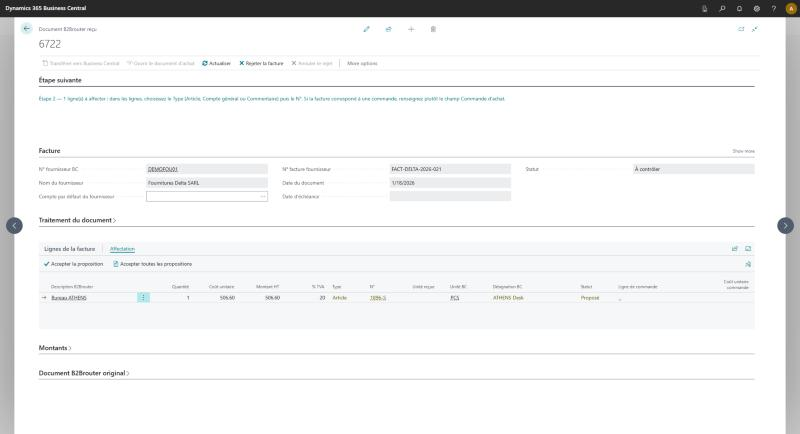
1. Next step
Dynamic box showing the next action to take, or the reason for the block (duplicate, line to match, amount difference…).
2. Invoice
Vendor, invoice no., dates. The vendor is recognized automatically by its VAT registration no., or from invoices of the same issuer that have already been assigned. A manual choice is also applied to the other invoices to process from the same issuer.
3. Document processing
| Purchase order | Empty = direct invoice. Choosing an order (only the vendor’s open or released orders are offered) matches the lines automatically. Clearing the field switches back to a direct invoice, after confirmation. A received order reference (BT-13) that matches a BC order is linked automatically, with no message if it matches nothing. |
| Processing | What the transfer will produce: a direct draft invoice, preparation of the order for “Receive and Invoice”, or a draft credit memo. |
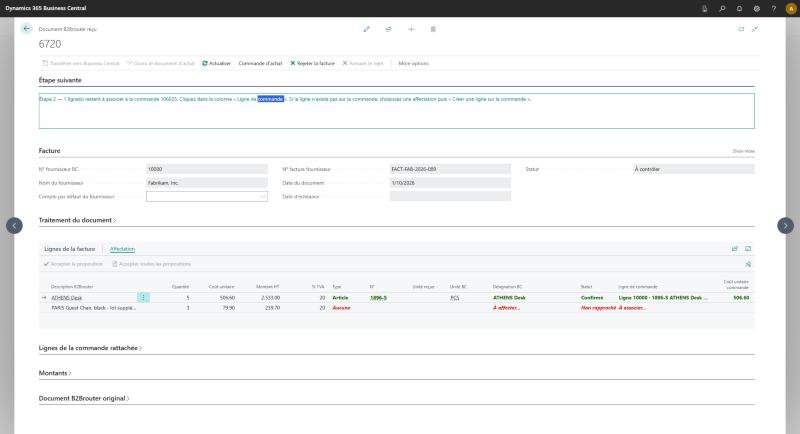
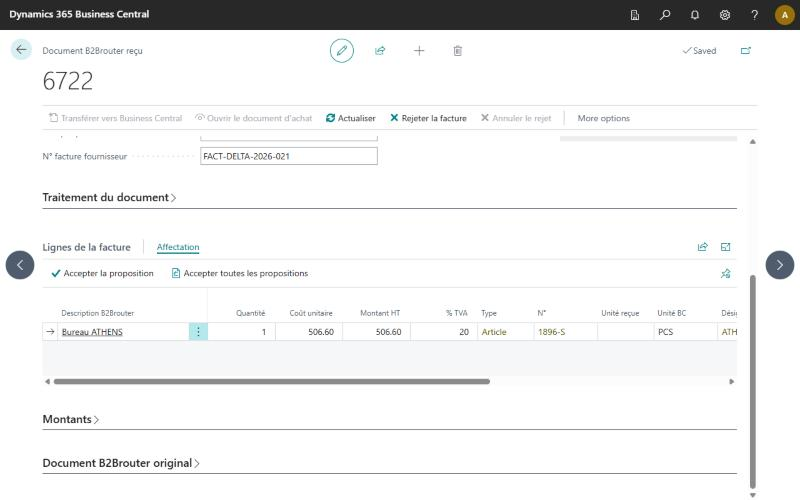
4. Invoice lines and lines of the linked order
The invoice lines (BC assignment and matching order line), then — if an order is linked — the order lines on the BC side: ordered, received, already invoiced, remaining to invoice, quantity on this invoice and situation (Closed by this invoice, Partially invoiced, Not on this invoice, Exceeded!).
5. Amounts
Total excl. VAT, VAT by received rates, calculated total incl. VAT, invoice amount incl. VAT and difference. With an order: value at order price and invoice / order difference.
Card buttons
| Button | Destination or result |
|---|---|
| Purchase order › Match lines automatically | Matches the lines that are still free (BT-132, item, vendor reference, item number), without changing existing matches. |
| Purchase order › Open order | Opens the standard purchase order. |
| Refresh | Reruns the checks (duplicate, linked document) and the assignment search on the lines still to be assigned. |
| Transfer to Business Central | See Chapter 5. |
| Cancel preparation | Restores the order to its original state and reopens the imported invoice for editing. |
| Open purchase document | Opens the prepared order, the draft or the posted document. |
| Remove from the to-process list | Removes the invoice from the list; it will be re-imported at the next “Retrieve invoices”. |
| Reject invoice | Asks for a reason, then immediately sends the refusal to the vendor through the source system. No purchase document is created. |
| Cancel rejection | On a rejected invoice: puts it back to be processed. If the refusal had been sent, the invoice goes back to “new” in the source system. |
Chapter 4
Matching lines to the order
Each invoice line must be in one of these states before the transfer:
| Matched to an order line | Green; yellow if the price differs. |
| + New order line | Line missing from the order (shipping costs, extra item), added to the order on transfer. |
| Comment | Line with no accounting impact. |
| To match… | Red: blocks the transfer until it is dealt with. |
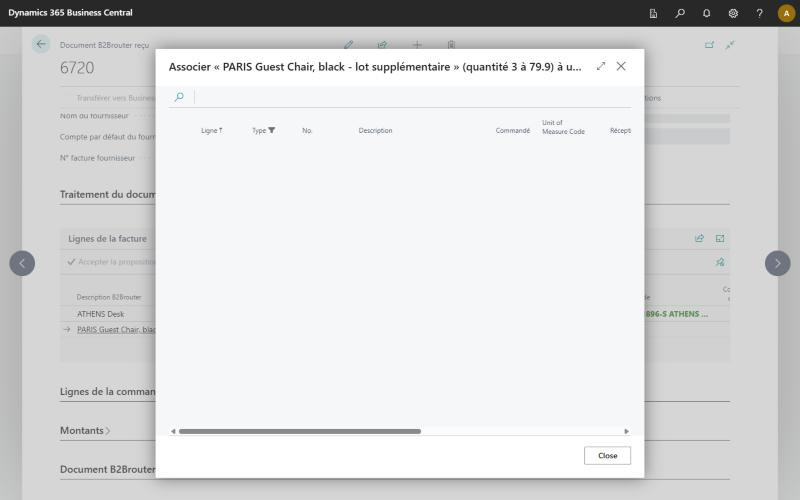
To deal with a “To match…” line: click in the Order line column to choose an existing line (remaining to invoice, price, hint), or choose an item/account and then Purchase order › Create a line on the order if the line does not exist on the order.
Several invoice lines can target the same order line: quantities add up, without ever exceeding the remaining quantity to invoice. If their prices differ, the price used on transfer is an average weighted by quantities. An invoice and an order in different currencies cannot be matched.
Assigning a line (item, G/L account, comment)
The assignment is entered directly in Invoice lines: choose the Type (Item, G/L Account or Comment), then the No. For a G/L account, only direct-posting income statement accounts are offered. Changing the Type clears the previous assignment; switching a line with a quantity or an amount to Comment asks for confirmation.
Confirmed assignments are learned automatically on posting: the next invoice from the same vendor with the same line will be assigned automatically (an existing rule is never replaced with another destination). For costs always posted to the same account, fill in the Vendor default account field on the card.
Chapter 5
Transferring to Business Central
Once all lines are confirmed, click Transfer to Business Central.
With a linked order
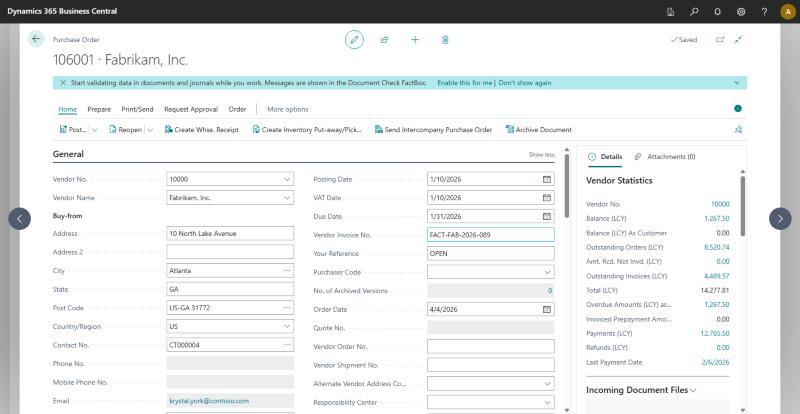
Prepares the order: quantities to receive/invoice for the relevant lines only, vendor invoice no., added lines — then opens it for the native Receive and Invoice flow. If prices differ, the transfer asks whether the invoiced price should be used.
Without an order (direct invoice)
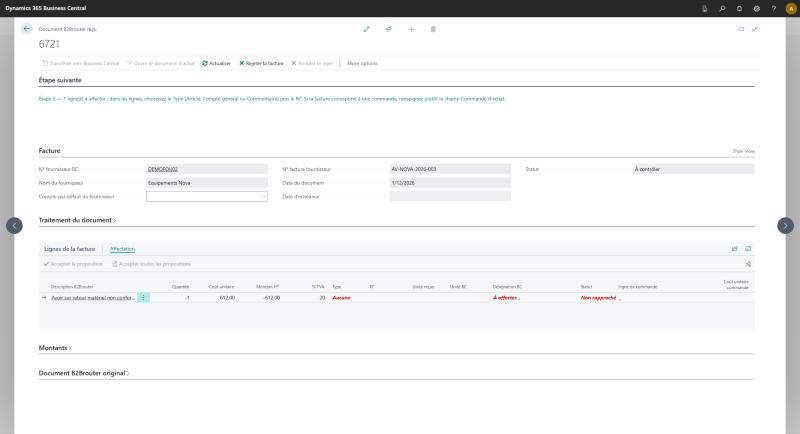
Creates a draft invoice or credit memo. If several lines target the same G/L account with the same VAT rate, the transfer asks whether to merge them into a single line (quantity 1, total amount, labelled “Invoice no. - vendor - date”). If the total incl. VAT calculated by Business Central differs from the received invoice (VAT in particular), both totals and the VAT groups involved are displayed; answering “No” removes the document so the VAT setup can be corrected before trying again.
What prevents duplicates
- An imported invoice is imported only once (source document identifier).
- A vendor invoice already posted in BC (same vendor, same no.) is filed automatically on import or on opening, with a link to the posted document. If the amount differs, it stays to be processed with a warning.
- An invoice no. already present on a draft or a prepared order blocks the transfer and shows the document concerned.
- An order can be prepared for only one invoice at a time.
- An order line cannot receive more than its remaining quantity to invoice.
Chapter 6
Filed invoices, rejection and transmitted statuses
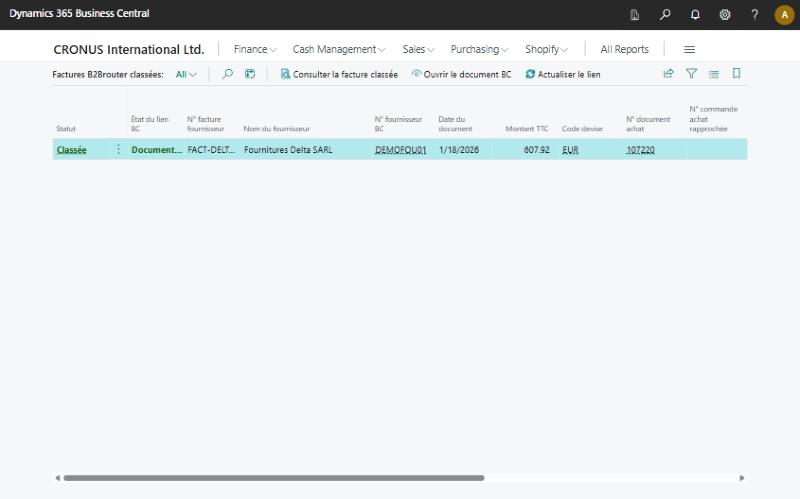
| Button | Destination or result |
|---|---|
| View filed invoice | Opens the stored source, its lines, its mappings and the link information, read-only. |
| Open BC document | Opens the posted document linked to the archive. |
| Refresh link | Checks whether the document is still a draft, has been posted or has been deleted. |
Statuses sent to the source system
- Refused: sent when the invoice is rejected, with the reason.
- Accepted: sent when the invoice or the order is posted, never when the draft is created or the order is prepared.
- New: sent when a rejection that was already transmitted is cancelled; the vendor has nevertheless already received the initial refusal.
- A failed send blocks nothing: the status remains to be transmitted and is sent again at the next import.
Meaning of the colours
| Green | Confirmed match or link available. |
| Yellow | Suggestion to check or incomplete information. |
| Red | Unmatched line, linked document deleted or inconsistency to fix. |
Chapter 7
Remembered mappings and vocabulary
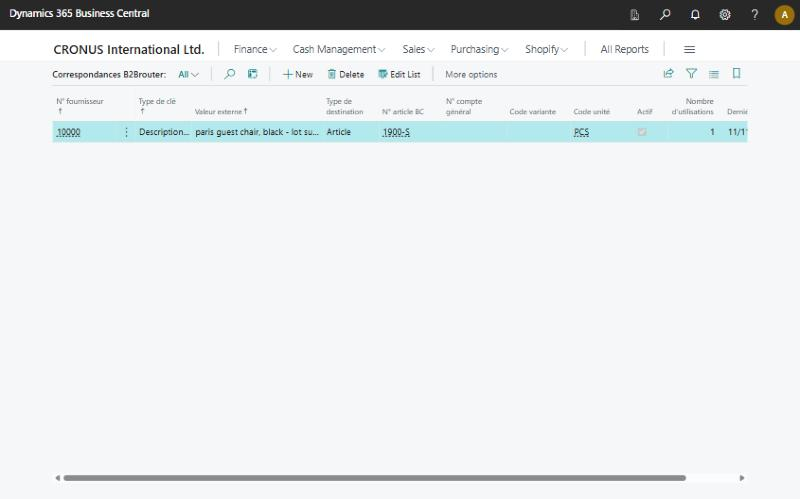
Each rule shows the vendor, the type of key recognized (item number, GTIN, vendor reference or description), the destination (item, variant, unit, or G/L account) and its usage history. The Open destination action opens the linked item or account directly.
Help
FAQ and support
Why does a line stay blocked on “To match…”?
No reliable automatic match was found (score below the threshold, or no lead at all). Choose the order line manually, or the item/account and then “Create a line on the order”.
Did the connector post a document by itself?
No: the transfer always prepares an order or creates a draft; posting remains a human action, in the standard Business Central flow.
Where is the API key stored?
Encrypted in the Business Central Isolated Storage, never in a readable table.
How do I get help?
Contact SKOR CONSEIL via support.skorconseil.com.
© SKOR CONSEIL — SK B2Brouter Connector for Microsoft Dynamics 365 Business Central